
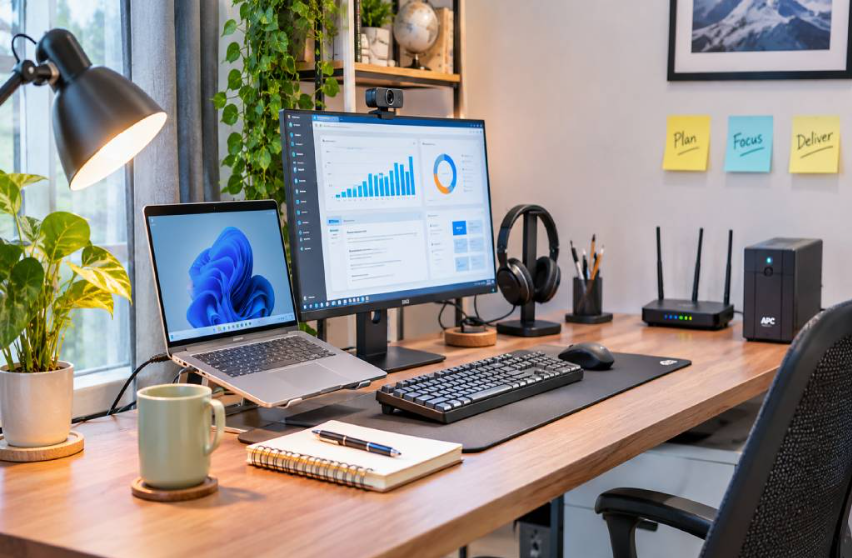
The essential technology devices for a productive home and office setup are a reliable computer, an external monitor, a stable router, a comfortable keyboard and mouse, a clear webcam and headset, and a power backup.
Together, they cut delays, reduce strain, and keep your work running without interruptions.
Everything starts with the computer. A dependable EERNA computer gives you the speed to run apps, join calls, and handle files without waiting. Still, the best computer needs the right tools around it.
This post covers the devices that matter most, what to look for in each, and the mistakes that waste money.
Why Does Your Tech Setup Affect Your Productivity?
The right devices remove small daily delays. A slow laptop, weak Wi-Fi, or tiny screen can cost you time every hour.
Picture a normal workday. You open ten tabs, join a video call, and share a file. If one device lags, everything stops.
A good setup fixes this problem. Each device does one job well, so you can focus on your work and not on your tools.
Which Computer Should You Choose for Home and Office Work?
A laptop suits people who move between spaces. A desktop suits people who work at one desk and want more power for the price.
For most work, aim for 16GB of RAM, an SSD, and a modern processor. 8GB handles basic tasks but can slow down with many tabs and video calls.
If you work from one desk, a desktop gives you more speed for the money. If you work from a cafe, a client site, and home, a laptop makes more sense.
| Feature | Laptop | Desktop |
|---|---|---|
| Portability | High | Low |
| Power for the price | Moderate | Higher |
| Upgrades | Limited | Easy |
| Best for | Hybrid work and travel | Fixed desks and heavy tasks |
How Does an External Monitor Boost Your Work?
A second screen lets you see more at once. It also lifts your eyes to a natural level, which helps your neck and posture.
Pick a screen of at least 24 inches with Full HD resolution. An IPS panel gives better colors and wider viewing angles.
For office work, 60Hz to 75Hz is enough, because high refresh rates matter mostly for gaming. Place the top of the screen at or just below eye level. A simple stand or arm makes this easy and also frees desk space.
What Internet and Power Devices Keep You Online?
A good router and a power backup protect your work from drops and outages. Without them, even the best computer cannot help you.
- Choose a Wi-Fi 6 router. It handles many devices at once, which helps when phones, laptops, and TVs share one network.
- Use a cable for important calls. An Ethernet cable gives a steadier link than Wi-Fi during interviews and client meetings.
- Add a UPS or surge protector. Power cuts and voltage swings can harm your devices. A UPS gives you a few minutes to save files and shut down safely.
Which Peripherals Make Daily Work More Comfortable?
The right keyboard, mouse, headset, and webcam make long days easier. They also help you look and sound professional on video calls.
- Keyboard and mouse. Choose a full-size keyboard with soft keys and a mouse that fits your hand. A wireless set also keeps your desk clean.
- Headset with a microphone. Noise-cancelling models block background sound, so your voice stays clear in busy homes and offices.
- Webcam. A Full HD webcam often gives a sharper picture than a built-in laptop camera. Good lighting adds even more clarity.
How Do Home and Office Setups Differ?
A home setup focuses on comfort and flexibility. An office setup focuses on shared tools, security, and steady output for a team.
The table below shows how needs change as the space grows.
| Need | Home Setup | Office Setup |
|---|---|---|
| Computer | One laptop or compact desktop | Matched desktops or laptops for the team |
| Printing | Basic inkjet or all-in-one | Laser or high-volume printer |
| Security | Strong passwords and antivirus | Antivirus, CCTV, and access control |
| Meetings | Webcam and headset | Conference camera and room microphone |
| Network | Single router | Router plus network switch |
How Can You Protect Your Files and Documents?
Backup devices protect your work if a drive fails. A printer or scanner turns paper tasks into quick jobs.
Keep every important file in two places. A portable SSD works well for weekly backups, and cloud storage adds a second copy.
An all-in-one printer handles printing, scanning, and copying in one device. Good antivirus software also guards your files from threats. These small habits protect days of work.
What Mistakes Should You Avoid When Buying Tech?
Most setup mistakes come from buying without a plan. A small checklist saves both money and time.
- Paying for specs you do not need. A basic user rarely needs the most powerful processor. Match the device to your daily tasks.
- Ignoring ports. Check for HDMI, USB-C, and USB-A ports before you buy. Missing ports often force you to buy extra adapters.
- Skipping the warranty. Choose a seller that offers an official warranty and local support. Repairs become faster and cheaper.
- Forgetting posture. A great screen on a low desk still hurts your neck. Raise the screen and support your back.
Quick Setup Checklist
A short checklist turns this advice into action. Work through it from top to bottom and your setup comes together fast.
- Set a budget first. Decide how much you can spend before you shop.
- Buy the computer first. Everything else depends on its ports and power.
- Add a monitor next. Use a 24-inch Full HD screen as your starting point.
- Secure your network and power. Get a reliable router and a UPS or surge protector.
- Finish with comfort tools. Add a keyboard, mouse, headset, and webcam.
- Back up weekly. Save your files to a portable SSD or cloud storage.
Final Suggestions for a Smarter Workspace
Build your setup in layers. Start with the computer, add the screen and network, and then fine-tune comfort.
Buy only what supports your daily tasks. A simple, well-chosen setup always beats a crowded desk full of unused gadgets. Review your tools every few months and replace the one that slows you down the most.